 Hey Mac
To lock WhatsApp on your Mac, first check WhatsApp’s own Privacy settings for App Lock. If your desktop version does not offer the lock you need, you can protect the WhatsApp app with a separate app locker. If you use WhatsApp in a browser, WhatsApp Web has its own password lock. Set up each place you use WhatsApp separately.
Disclosure: I’m Harshit, the developer of Hey Mac, the free, open-source app locker shown below. This guide uses WhatsApp and Apple documentation and an existing Hey Mac demonstration. It is not a hands-on test of every WhatsApp version.
Choose the option that matches how you use WhatsApp
- WhatsApp desktop app: check for built-in App Lock first. Use an app locker if you need another way to protect the app.
- WhatsApp Web: use its built-in password lock instead of locking your entire browser.
- Message previews: hide these separately in macOS Notifications settings.
- Leaving your desk: lock your whole Mac, even if WhatsApp has an app lock.
Check WhatsApp’s built-in App Lock first
Open WhatsApp’s settings and look under Privacy for App Lock. WhatsApp’s current account security guidance mentions password App Lock on Web, Windows, and Mac. Available controls can differ by platform and version, so check the options in your installed app.
If App Lock is available, follow the prompts to enable it and choose a relock interval. Then lock WhatsApp and reopen it to check that your conversations are hidden until you authenticate. Do not assume a setting you enabled on your phone also protects the desktop app.
If you cannot find the option, update WhatsApp and check again. You can also use the separate app-locking method below. There is no need to install another tool if WhatsApp’s own lock already meets your needs.
How to lock the WhatsApp desktop app with Hey Mac
Hey Mac puts a privacy shield over selected apps until you verify with your face, Touch ID, or password. It needs an Apple silicon Mac running macOS 14 Sonoma or later. Face recognition needs a camera. It is free and open source.
1. Install and finish setup
Download the Hey Mac DMG, open it, and drag Hey Mac into Applications. If you use Homebrew, you can install it with:
brew install --cask iharshitmaurya/tap/heymacOpen Hey Mac. If macOS blocks the first launch, go to System Settings → Privacy & Security → Open Anyway. Follow the setup for App Lock and the verification methods you want to use. If you choose face verification, allow camera access and enroll your face.
2. Add WhatsApp to App Lock
- Open Hey Mac’s settings and select App Lock.
- Turn on Protect selected apps.
- Click Add App…, find WhatsApp in the app picker, and select it.
- Finish the picker with Done. Check that WhatsApp appears in your selected apps.
The wording of these controls may differ in your installed release. Adding the desktop app does not also lock a WhatsApp Web tab.
3. Choose when WhatsApp relocks
Use the relock menu beside WhatsApp to choose a policy. You can relock when switching to another app, five or fifteen minutes after unlocking, or five minutes after switching away. A timed policy leaves an access window after authentication; choose the switching-away option if you want it to relock as you move to another app.
Under App Lock coverage, choose whether to cover the display or only the protected app’s windows. Window-only coverage keeps other apps visible, but content may briefly appear when windows move or open. Full-display coverage is the more conservative choice for hiding the screen during verification.
4. Check the result before relying on it
Switch away from WhatsApp and return after the relock condition you chose. Confirm that the shield appears, then authenticate and check that you can use WhatsApp again. Repeat after quitting and reopening WhatsApp. This checks your configuration; it is not a security audit.
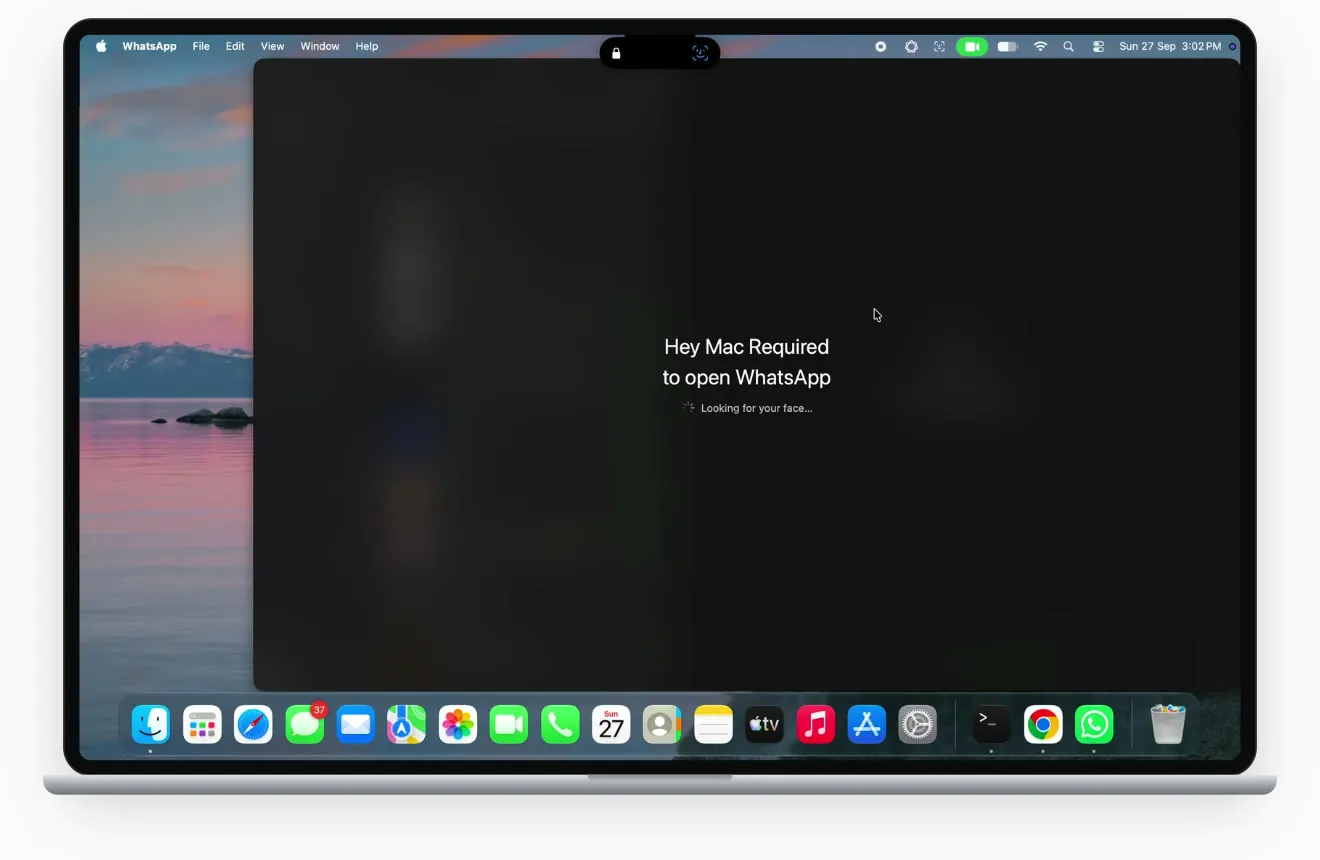
Watch the WhatsApp App Lock demonstration
The silent recording shows WhatsApp opening behind a shield, Hey Mac checking the user’s face, an unlocked confirmation, and the WhatsApp window becoming visible.
How to password-lock WhatsApp Web on a Mac
If you use WhatsApp Web, its own App Lock protects that session without blocking your other browser tabs. WhatsApp documents these steps in its Web App Lock instructions:
- In WhatsApp Web, open Settings → Privacy → App Lock.
- Enable App Lock and set a strong password when prompted.
- Choose the automatic lock interval you want.
- Use More options → Lock app to check the lock immediately.
With Web App Lock enabled, the Mac shortcut is Command + Control + L. This locks WhatsApp Web; it does not lock macOS. WhatsApp says notifications do not appear while the Web app is locked.
Hide WhatsApp notification previews too
A lock over an app window does not necessarily hide message previews elsewhere. For the desktop app, open System Settings → Notifications → WhatsApp, then set Show previews to Never. You can turn off notifications for WhatsApp if you do not want alerts at all. Apple explains these controls in Notifications settings on Mac.
When Unlocked still permits previews while someone uses your unlocked Mac. Choose Never if that is the situation you want to address. Browser notifications have separate controls; check the browser or website notification entry if you use WhatsApp Web.
What an app lock does not protect
- Other sessions: check your phone, other computers, and browser sessions separately.
- Downloaded files: media you saved outside WhatsApp remains accessible according to that file’s permissions.
- Your whole account: Hey Mac’s shield hides app content; it does not encrypt WhatsApp’s files or isolate them from other software running as you.
- Every physical-access threat: webcam face recognition is not Apple Face ID. Keep your Mac password and use the verification method appropriate to your setting.
When you leave your Mac, press Control + Command + Q to lock the screen. Apple lists this shortcut in Mac keyboard shortcuts. For a regularly shared computer, consider a separate user account; our guide to locking apps on Mac explains the alternatives.
Questions about locking WhatsApp on Mac
Can I lock WhatsApp with Touch ID?
Hey Mac supports Touch ID for App Lock on compatible hardware. Check WhatsApp’s own App Lock settings too; its authentication options depend on the platform and version. WhatsApp Web’s documented App Lock uses a password.
Will locking my browser with Hey Mac lock just WhatsApp Web?
No. Selecting a browser protects that application, rather than a specific website tab. Use WhatsApp Web’s built-in lock if you want other tabs to stay available.
Is Chat Lock the same as locking the whole app?
No. Chat Lock protects selected conversations; App Lock gates the app session. WhatsApp’s Chat Lock documentation explains the conversation-level option. Pick the platform you use before following its steps.
Why does WhatsApp stay open after I authenticate?
Check the relock policy you chose. A five-minute or fifteen-minute allowance is meant to keep the app accessible for that interval. Test the switching-away policy if you want a prompt when you return.
About the author
Harshit Maurya develops Hey Mac, an open-source face unlock and app lock app for macOS. Compare face unlock apps for Mac.
Sources and verification
Reviewed October 18, 2026. The screenshots and silent video come from Hey Mac’s existing WhatsApp demonstration. This guide does not claim measured security or compatibility results.