 Hey Mac
To lock private photos on a Mac, start with the Hidden album in Apple Photos. On macOS Ventura or later, it requires authentication by default. If you want to stop someone browsing the entire Photos app while your Mac is unlocked, an app locker offers a different layer of protection. Neither approach should be mistaken for a separate encrypted photo vault.
The right choice depends on what you want to keep private: a few pictures, the app window, or copies of the files themselves.
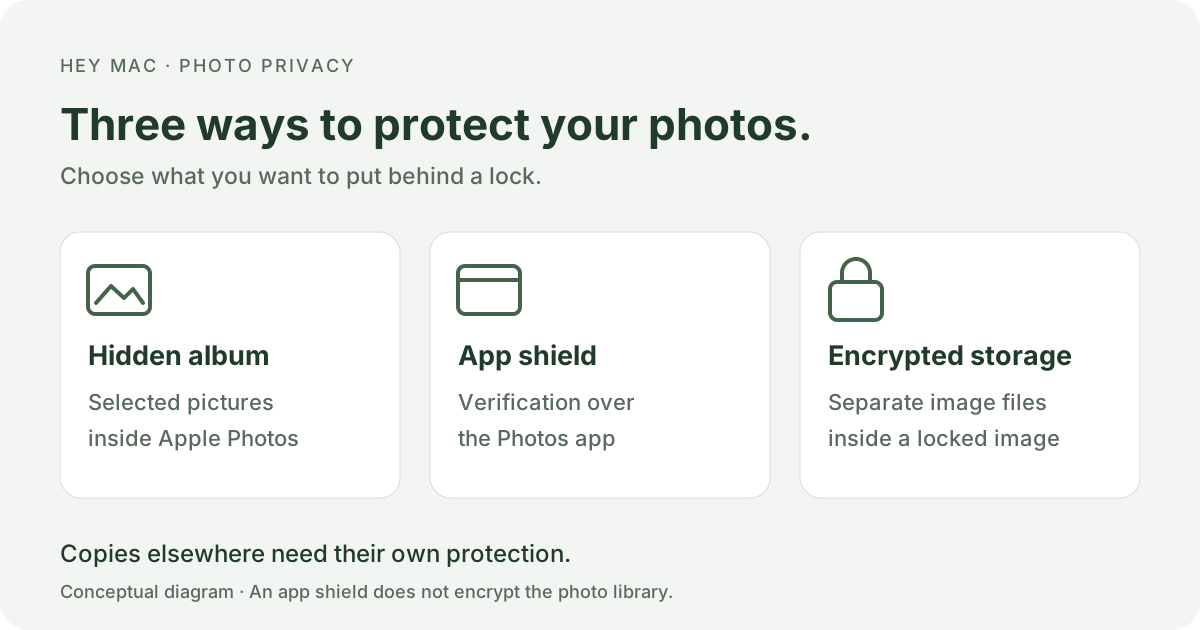
Disclosure: I’m Harshit, the developer of Hey Mac, the free, open-source app locker described below. Apple’s instructions were checked against its documentation on October 20, 2026. This guide does not claim a hands-on security test of Photos. The diagram is an explanation, not a screenshot.
Choose what you want to lock
| Your goal | Start with | What to remember |
|---|---|---|
| Keep selected pictures out of casual browsing | Photos’ locked Hidden album | Other pictures remain available in Photos. |
| Ask for verification before viewing Photos | An app locker such as Hey Mac | A shield over the app does not encrypt its library. |
| Store separate image files behind a password | An encrypted disk image | Protect or remove other copies separately; eject the image when finished. |
| Let someone regularly use your computer | A separate macOS user account | Keep your own session locked and your password private. |
If you only need to hide a few photos, try the built-in option before installing anything.
How to lock hidden photos on Mac
Apple separates two controls: whether the Hidden album appears in the sidebar, and whether authentication is required to open it. Hiding its name is not the same as enabling its lock.
1. Hide the pictures you choose
- Open Photos and select the pictures or videos you want to hide.
- Control-click the selection and choose Hide Photo, or the equivalent option for multiple items.
- Confirm the action.
Apple’s Hidden album instructions explain that hidden items disappear from the usual Photos views. They are hidden rather than deleted.
2. Check the authentication setting
In Photos, choose Photos → Settings → General. Under Privacy, keep Use Touch ID or password enabled. Apple documents this control in Photos settings; it applies to Hidden and Recently Deleted. Wording may vary with your macOS version and hardware.
3. Open Hidden and check the prompt
Choose View → Show Hidden Photo Album, select Hidden under Utilities in the sidebar, then click View Album. Unlock it with Touch ID or your Mac login password when requested. If Utilities is collapsed, expand it first.
You can put the album out of sight again with View → Hide Hidden Photo Album. Apple’s Photos guide describes both sidebar visibility and unlocking. Anyone who knows your login password can use that credential; the Hidden album is not a separate secret password.
Hidden album vs. locking the whole Photos app
Imagine handing someone your unlocked Mac to check a website. The Hidden album can keep selected pictures out of ordinary browsing, but the rest of your library is still visible if they open Photos. An app lock addresses that different situation by placing a verification step over the application.
For a frequently shared Mac, a separate account is usually a clearer starting point than letting another person use your session. Our guide to locking apps on Mac compares account separation, app lockers, and native alternatives.
How to lock the Photos app with Hey Mac
Hey Mac shields selected applications until you verify with your face, Touch ID, or password. It requires an Apple silicon Mac running macOS 14 Sonoma or later. Face verification needs a camera; it uses software recognition rather than Apple Face ID hardware.
1. Install and finish setup
Get Hey Mac from the official download. Finish setup and enable the verification methods you intend to use. For face verification, grant camera access and enroll your face. Read any macOS warning carefully and verify the download’s origin before choosing to open it.
2. Select Photos in App Lock
- Open Hey Mac’s settings and select App Lock.
- Enable Protect selected apps.
- Click Add App…, find Photos in the picker, and select it.
- Click Done and confirm that Photos appears among your protected apps.
Your installed release may use different wording for these controls.
3. Choose when it relocks
Use the policy beside Photos to choose when verification becomes necessary again. When switching to another app relocks it as you leave. The timed alternatives allow access for five or fifteen minutes after unlocking, or relock five minutes after switching away.
A timed allowance is convenient when moving between Photos and an editor, but it also leaves time when returning to Photos will not prompt again. Choose based on how you share your screen and computer.
Under App Lock coverage, choose full-display or app-window coverage. In window-only mode, app content can briefly show when windows move or open. Full-display coverage hides more of the screen during verification; neither mode isolates the underlying files from other software.
4. Check your configuration with a harmless picture
Before relying on the shield, use a non-sensitive image to check the behavior:
- Open Photos, switch to another app, and return after your chosen relock condition.
- Confirm that the shield appears and your selected verification method restores access.
- Quit and reopen Photos, then check again after your Mac sleeps and wakes.
- Confirm that you can still use your password or Touch ID fallback.
This is a configuration check, not proof of resistance to a determined person or malicious software. If the behavior does not match your needs, keep the sensitive material out of the app until you resolve it.
When you need to password-protect photo files
For a separate collection of exported image files, consider an encrypted disk image. Apple’s Disk Utility instructions describe creating an image, choosing encryption, and setting a password. Open the image when you need the files and eject it afterward.
Make sure you can reopen the image and recover your files before changing any originals. Creating an encrypted copy does not protect an unencrypted copy in Downloads, Photos, an external drive, or a backup. This is a separate-file workflow; you do not need to move your working Photos library to follow this article.
FileVault protects the Mac’s startup-disk data. It serves a different purpose from an app prompt and does not stop someone browsing Photos in a session you have already unlocked.
What these locks do not protect
- Every copy of a picture. Check exported files, attachments, shared copies, and backups separately.
- Every device or website. A Hey Mac rule applies on that Mac, not to Photos on your phone or an iCloud browser session. Apple says hidden status syncs through iCloud Photos; that does not make a Mac app-lock rule sync with it.
- Access through other software. Hey Mac’s shield does not encrypt the Photos library or prevent other processes running as you from accessing data they have permission to read.
- Someone who has your credentials. If another person knows the password used to unlock your data, an authentication prompt may not keep them out.
When you leave your desk, lock macOS as well: press Control + Command + Q. Apple lists this in Mac keyboard shortcuts. App privacy works best when your account itself is protected.
Questions about locking Photos on Mac
Can I put a separate password on a normal Photos album?
Apple’s documented privacy lock applies to Hidden and Recently Deleted, not a custom password for each ordinary album. Use Hidden for selected pictures, or encrypted storage if you need a separate password for a collection of files.
Does this work on MacBook Air and MacBook Pro?
The built-in Hidden album lock depends on macOS: Apple documents it for Ventura and later. Hey Mac has its own requirements—Apple silicon and macOS 14 or later. Check the operating system and chip rather than relying on the Air or Pro name alone.
Can I lock Photos with Touch ID?
Yes, the native Hidden album supports Touch ID on compatible hardware when its privacy setting is enabled. Hey Mac also offers Touch ID for its app shield. The first protects access to the album; the second gates the application view.
Can face unlock on Mac provide the same protection as iPhone Face ID?
No. Hey Mac uses a normal camera and software face recognition. Read our Face ID for Mac explainer for the hardware distinction, and use Touch ID or a strong password when that better fits your situation.
Why can I still see Photos after unlocking it once?
If you use Hey Mac, check the relock allowance. A timed policy intentionally keeps access available for an interval. Test switching-away relocking if you want it to prompt when you return, and keep the Hidden album’s native privacy setting enabled separately.
About the author
Harshit Maurya develops Hey Mac, an open-source face unlock and app lock utility for macOS. This article includes Hey Mac as one option and recommends Apple’s built-in protection first when it meets the reader’s needs.
Sources and verification
Reviewed October 20, 2026. The Apple support pages below explain the built-in privacy controls. No Photos-specific screenshot, measured security result, or independent product test is claimed.